


- Select >> Show 24 hours trading (no filtering)
- Untick >> Filter weekends
- Select Trading hours (local time) >> Start: 09:00 and End: 23:59
- Select the "TrueData" database in Data series window
- Select the symbol name ane double click on that then select the "Nse" in session template
- Then click on the OK button.
Dear All,
Muhurat Trading is the auspicious stock market trading for an hour on Diwali (Deepawali). It is a symbolic and old ritual, that has been retained and observed for ages, by the trading community.
As Diwali also marks the beginning of the New Year, it is believed that Muhurat Trading on this day brings wealth and prosperity throughout the year.
The time of Muhurat Trading is specified by the stock exchange.
08-Nov-2026 (Sunday) Muhurat Trading Timing!
| Start Time | Close Time |
| 02:00 pm | 04:00 pm |
Our Support Timings
01:00 pm to 04:30 pm for Muhurat Trading on Diwali!
In this article, you will be able to find the settings required for the below-mentioned charting software. Please click on the charting software you wish to configure directly you need to go to the settings for the same.
1. Amibroker
4. AdvancedGet (only the 9.0 Dashboard edition is supported by Velocity)
5. MetaStock
6. Motivewave
1. Amibroker Settings
Step 1) Click on File >> Database Settings >> Intraday ettings >>

Step 2)
Note:- There is no need to change the time in softwares for this Muhurat Trading session, as it will take place in the afternoon
Now, click on the OK button and then restart Amibroker once to get the changes implemented.

2. NinjaTrader 7.0 Settings
Step 1) Open the Ninja Trader 7 and Click on the "Tools" >> Select "Session Manager"
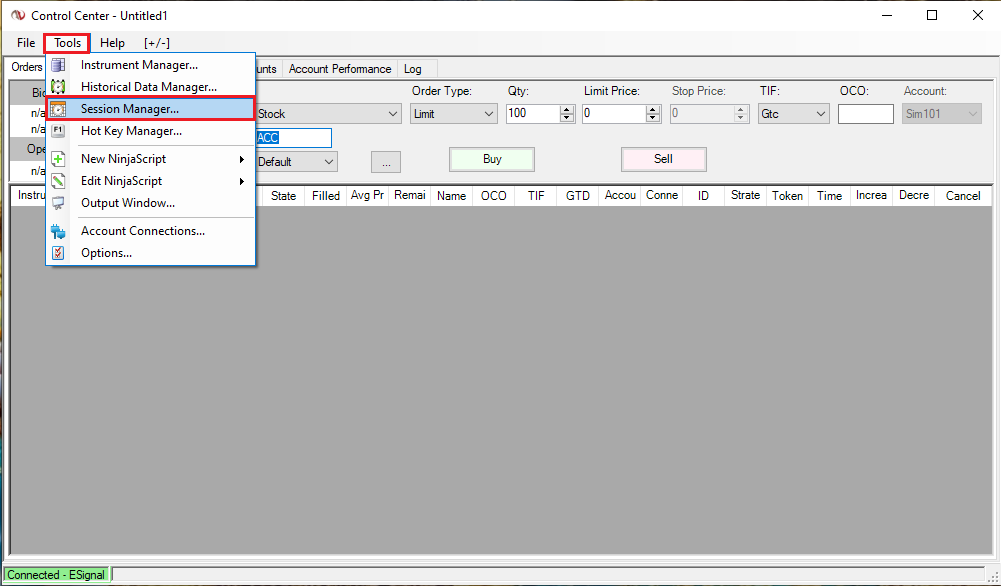
>> Select the "NSE" in Session Template and Click on the "Add" Button
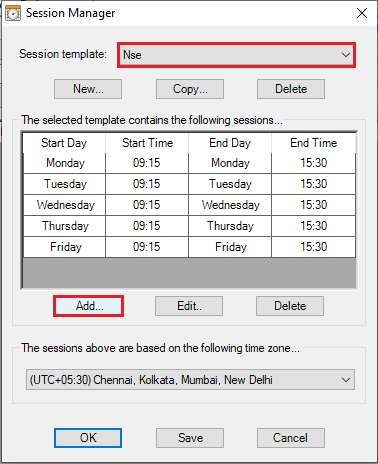
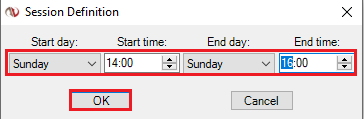
>> Select the day as "Sunday" in Session Definition and Set the "Start time" and End time" = "14:00 to 16:00" then click on the "OK" Button
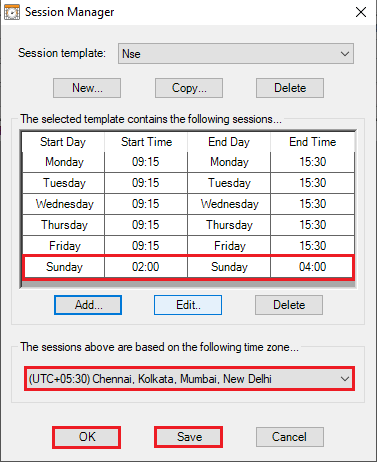
>> Select the "Time Zone" then click on the "Save and OK" Button
Step 2)
>> Then Click on the "File" and select the "Chart"

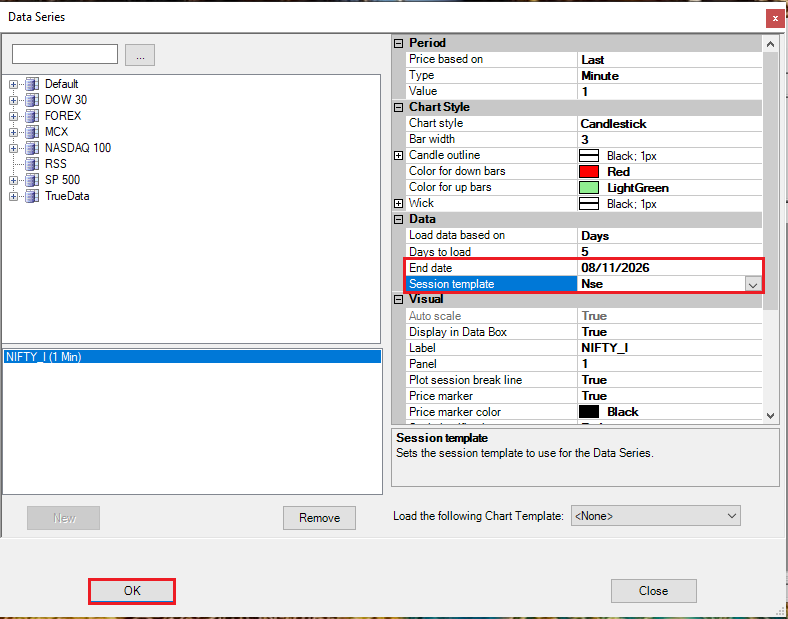
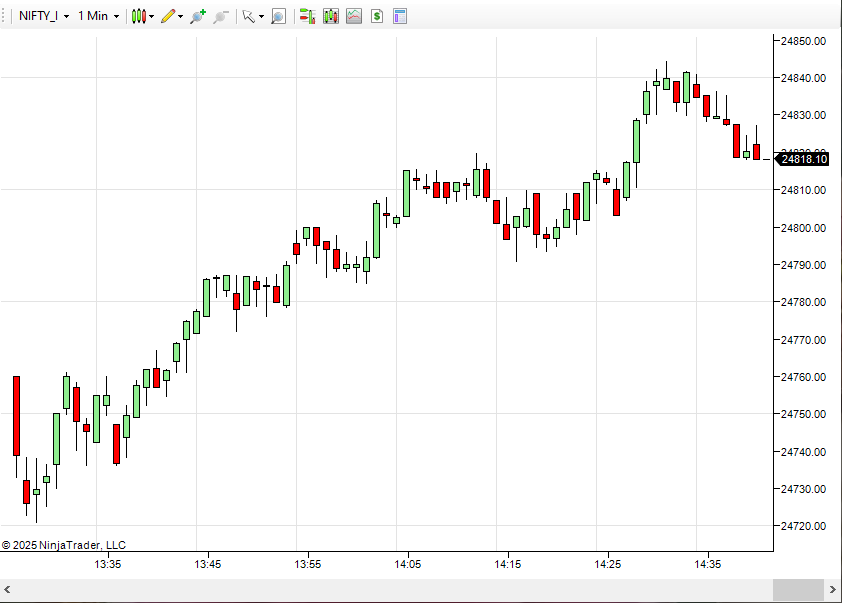
Step 3) Once the OK button is clicked, the chart will open immediately.
3. NinjaTrader 8.0 Settings
Step 1) Please Download the Zip file for "Diwali muhurat Trading" from the web site bottom as Diwali- Session Timings (NT8)
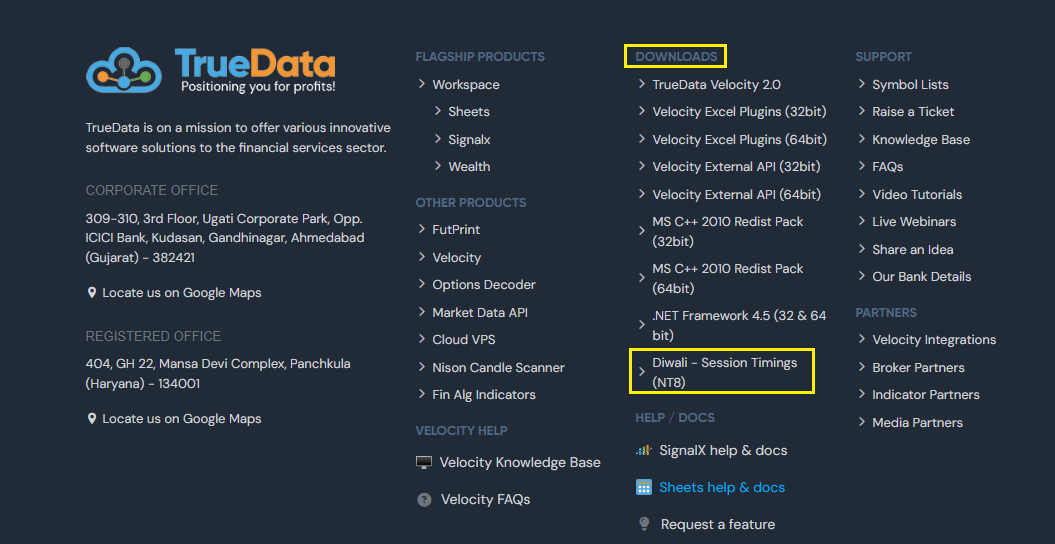
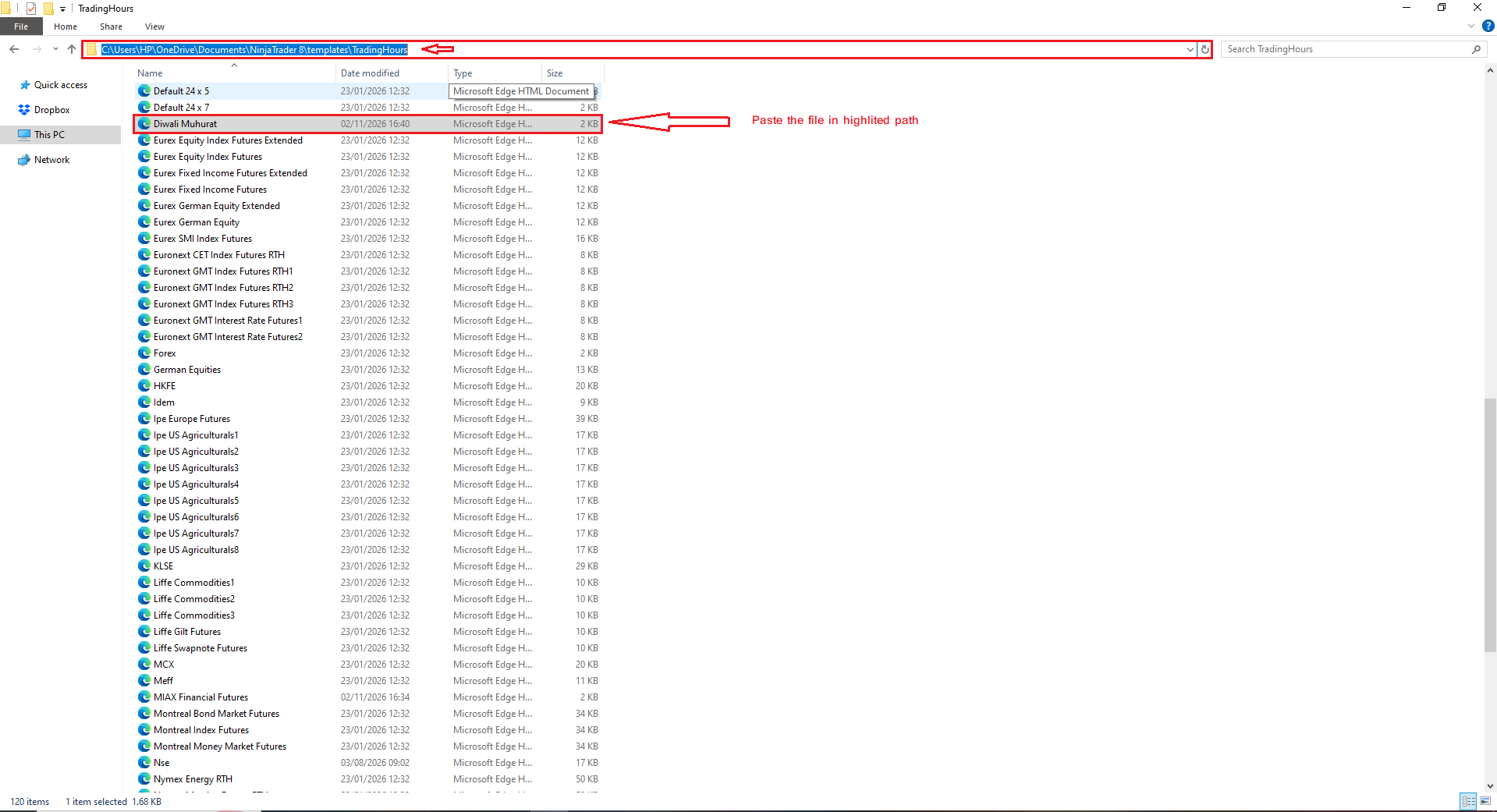
>> Open your path where you have downloaded the File and Right Click that file "extract" that file and Copy that file
e.g. >> C:\Users\HP\Downloads

>> After copying that file paste that file at below shown path.
>> Path >> "C:\Users\HP\OneDrive\Documents\NinjaTrader 8\templates\TradingHours"
Step 2) Open Your Ninja Trader 8 and click on the New tab then >> Select the Chart Option

Step 3) Write the Symbol name in Data series >>Select the Diwali muhurat in Trading hours then Click On the "OK" button
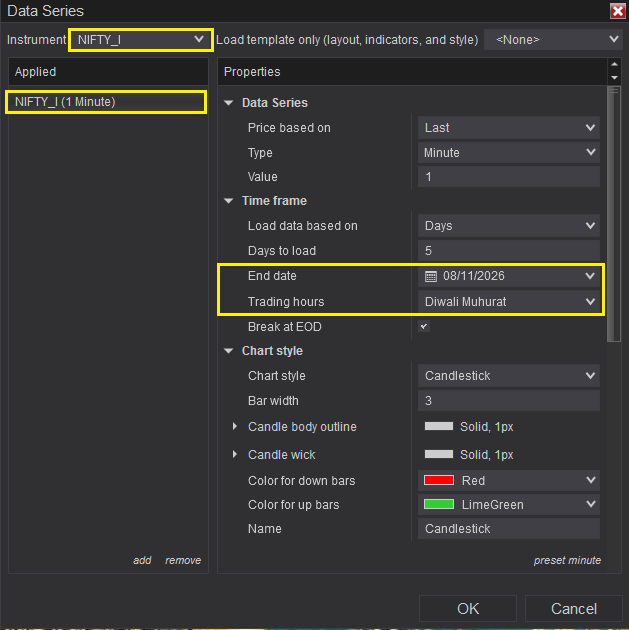
Step 4) Once the OK button is clicked, the chart will open immediately.

4. AdvancedGet Settings
>> If you are using AdvancedGet - then there is no need to change any settings.
5. MetaStock Settings
Step 1) Click on Tools then Select Options (as per the below image)
>> Then select Chart Options and Untick Ignore weekend Data under the Data (as per the below image)

>> Then right-click on Symbol >> Go to Properties and change the Timing to start time 00:00 to end time 00:00.

6. Motivewave Diwali Muhurat
>> If you are using Motivewave - then there is no need to change any settings this time. Hence please ignore the below steps.
Step 1) Open motivewave select "Configure" and select "Preferences" as per the below image.

Step 2) Then select the "General" menu and select "Trading Hours" in the sub-menu and click on the "Add" plus icon button as per below the image.

>>Then need to add "Diwali Muhurat" in your Name Field.
>> Select "NSE" in Exchange.

>> Then Select the "Hours" tab
>> Select "Asia/Calcutta" in Time Zone.

>> And "Tick mark on Enabled" on "Sunady" and "Start 14:00 to End 16:00" then select "Extended Hours" then click on the "OK" button as per the below image.
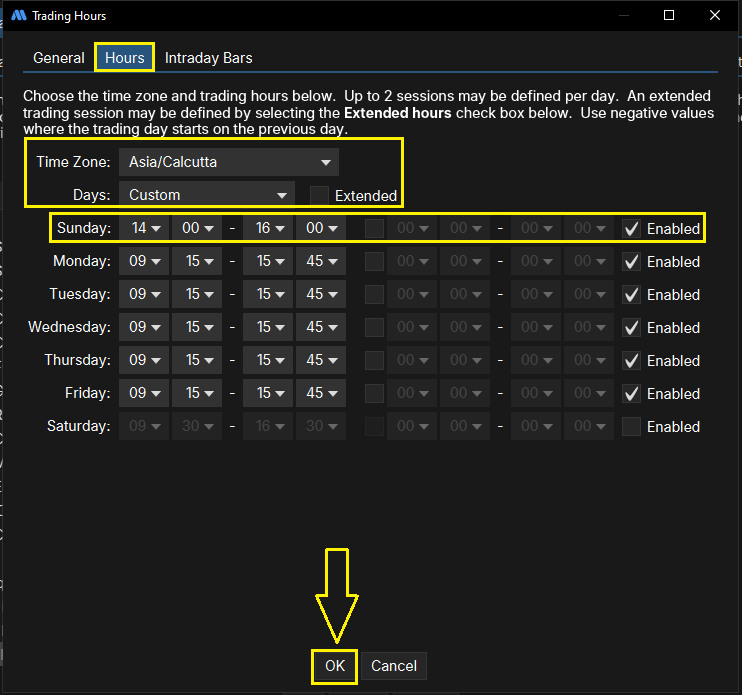
>> Then Select "Diwali Muhurt" and click on the "Apply" and "OK" button as shown in the below image

Step 3) Then need to right-click on the chart and select "Edit Instrument" as per the below image.

>>Then Select "Advanced" and select "Diwali Muhurat" in the drop-down list and click on the "OK" button as per the below image.

Step 4) After the above process charts will be working fine in "Diwali Muhurat" trading hours as per the below image.
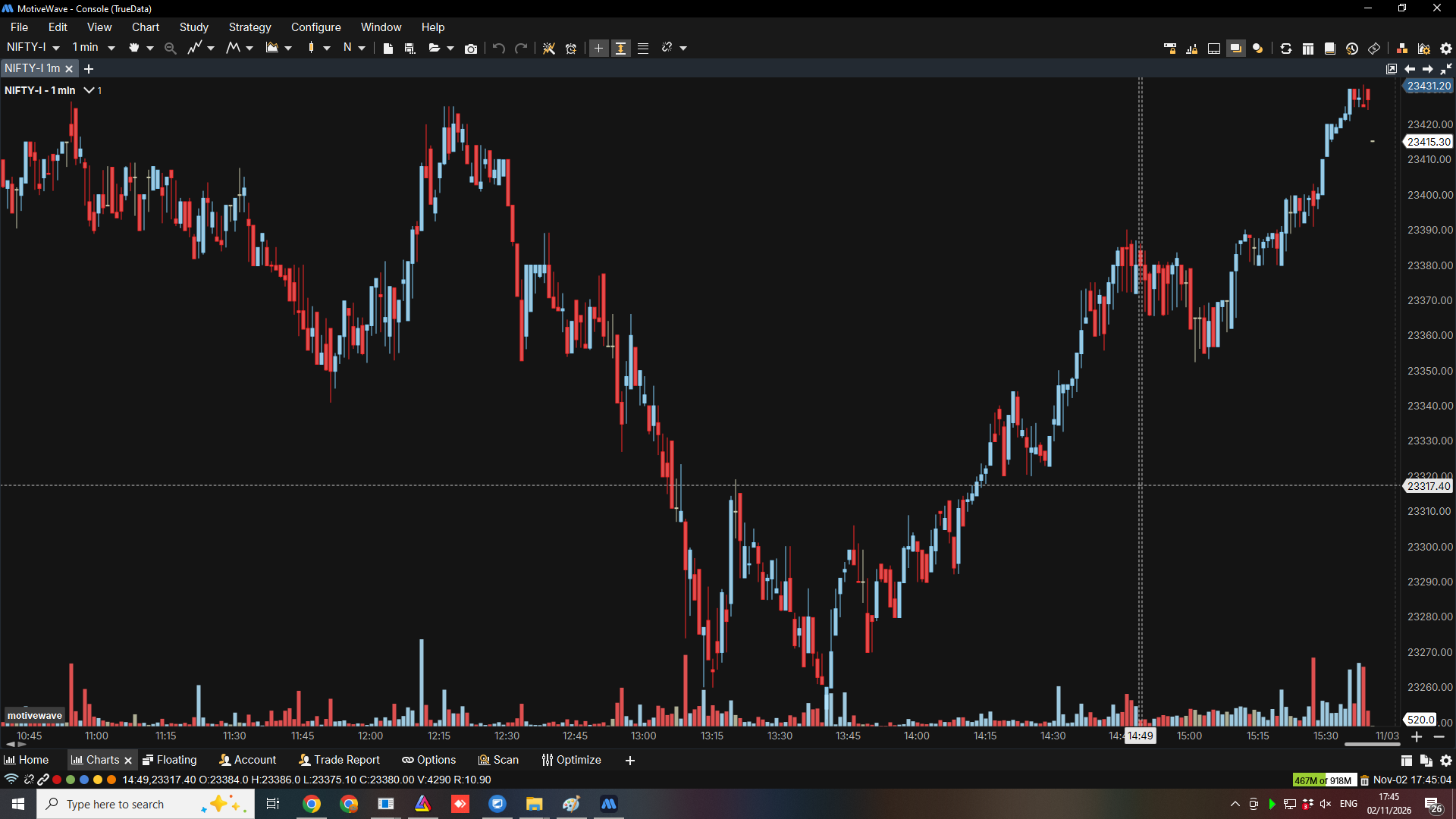
Now Save All and Enjoy the Muhurat Trading Session.
Thank you and Happy Diwali!