


On the occasion of budget 2026 on 01st February (Sunday), the NSE, BSE and MCX Markets would be open to customers planning to trade during the market hours using Amibroker and/or NinjaTrader 7 / 8, please do the below-specified settings to get the Real-Time Data.
>> NSE & BSE Market Timings: 9:15 AM to 3:30 PM
>> MCX Market Timings: 09:00 AM to 11.59 PM
Amibroker Settings:
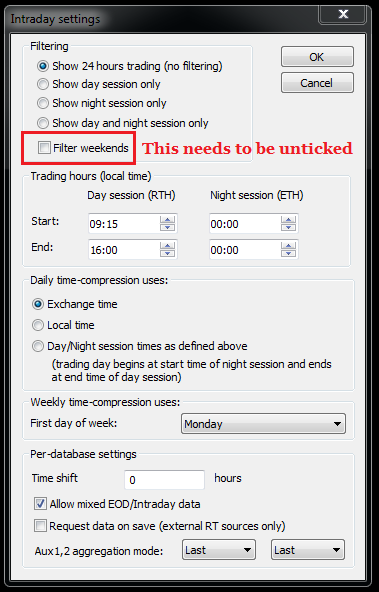
Go to The File menu>> Database Settings >> Intraday Settings >> Filter weekends need to be unticked
Then click on "OK" and close Amibroker once and start it again.
NinjaTrader 7 Settings:
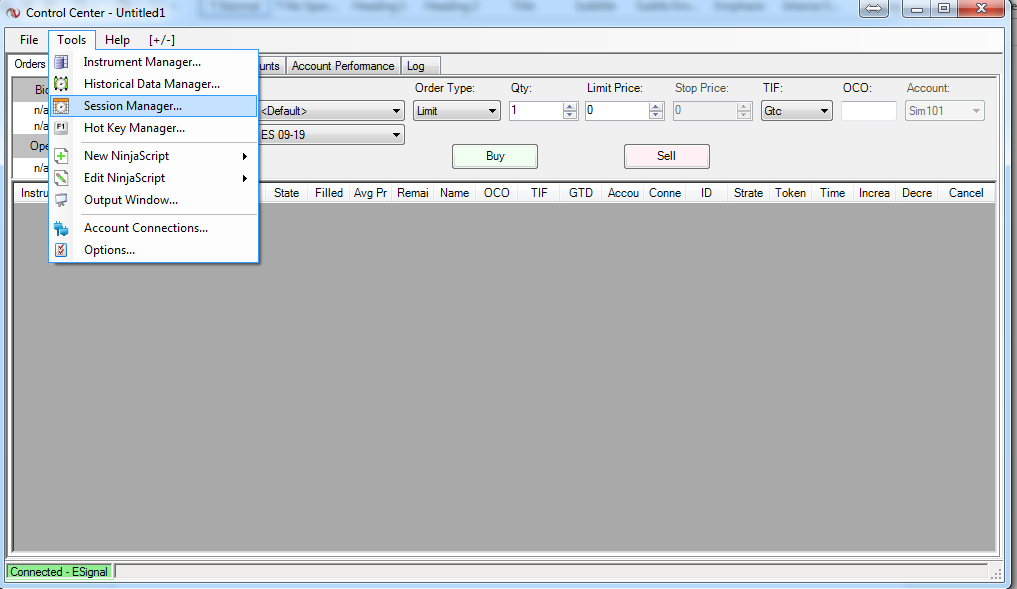
1. Go to the Tools menu >> then click on Session Manager <<
In Session Manager >> From the drop-down option in the Session template select NSE as shown in the image below
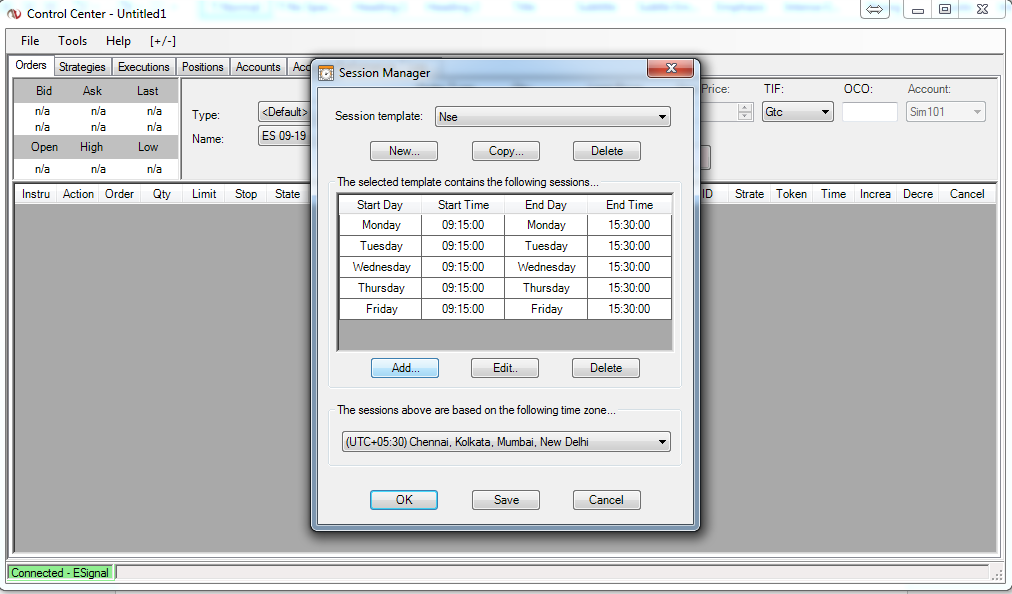
Then click on "New" and Add Saturday
In Start Time enter: 9:15:00 and in End Day enter: 15:30:00 and then click on "OK"
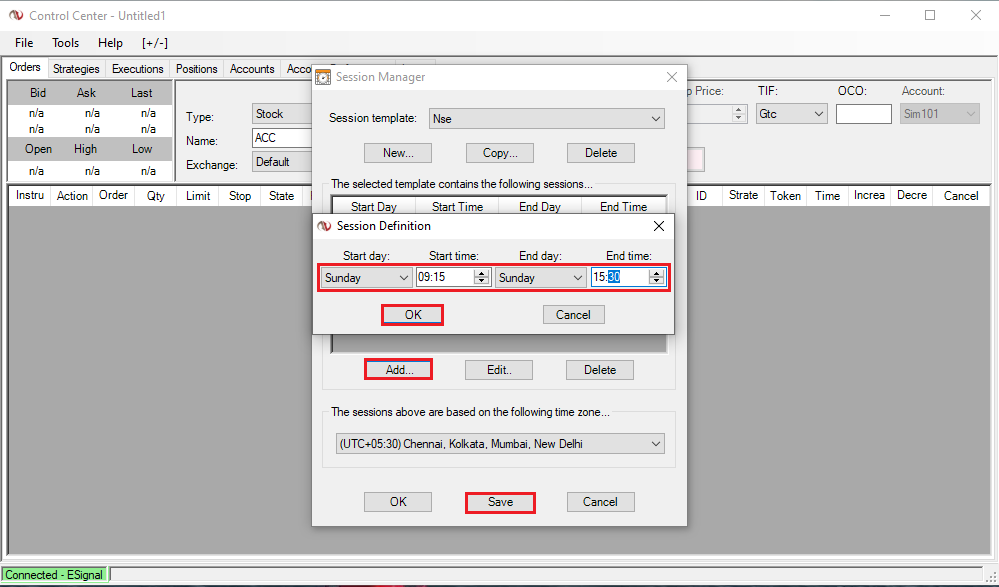
Once you can see Saturday as shown in the below image, click on "Save" and click on "OK"
NOTE: Make sure the time zone is set to IST as shown in the below image.
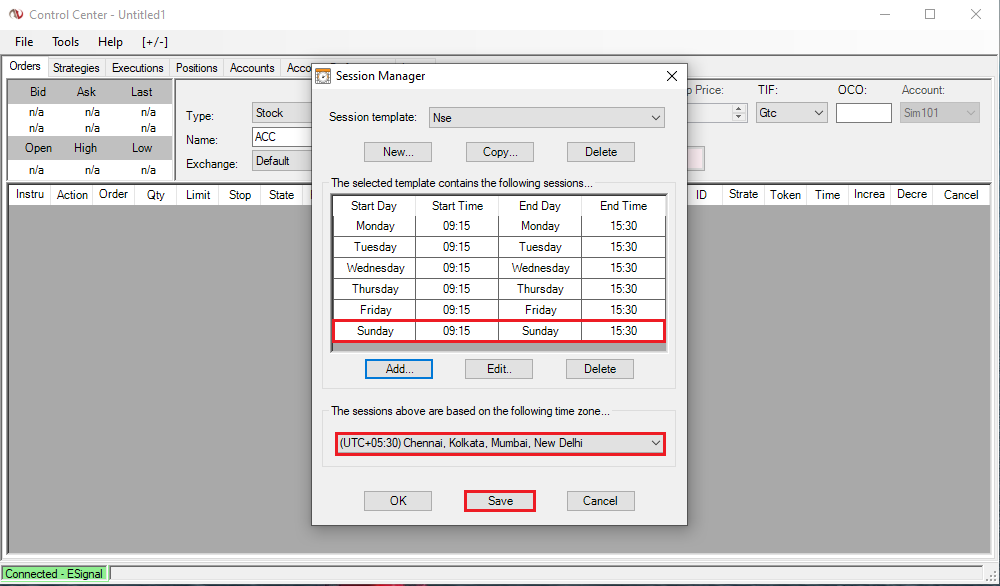
Once all the above settings are done, please "Reload Historical Data" by right-clicking on the chart which is already open and it will show you the Data for 01st February 2026 (Budget Day)
NinjaTrader 8 Settings:
1. Go to the Tools menu and click on >> Trading hours <<
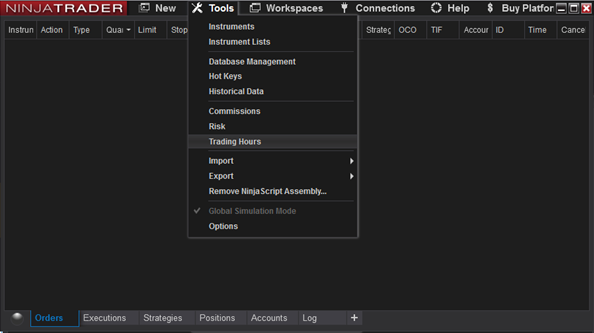
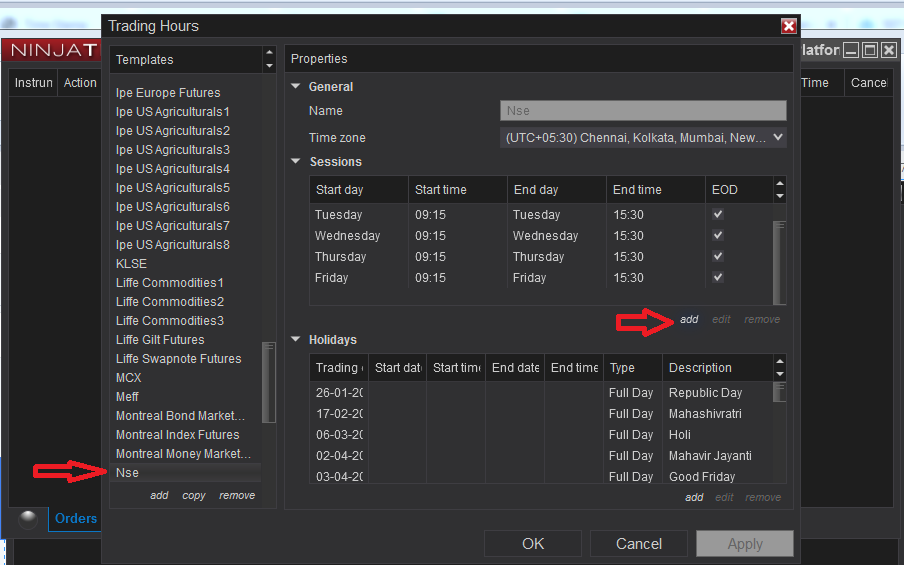
In Trading hours >> under Templates select "NSE"
>> and under Properties click on "Add" then select "Saturday"
In Start Time enter: 9:15:00 and in End Time enter: 15:30:00 and then click on "OK"
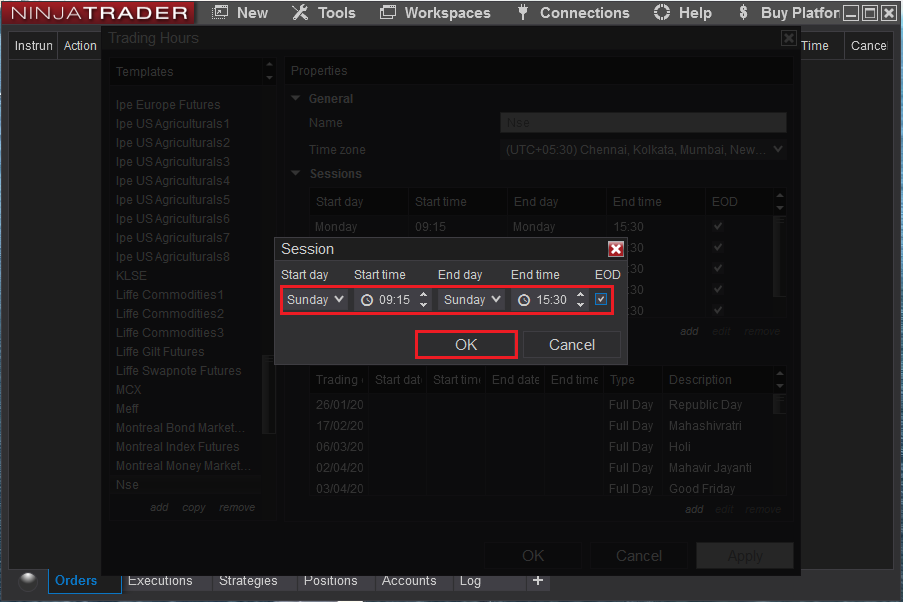
Once you are able to see Saturday as shown in the below image, click on "Apply" and click on "OK"
NOTE: Make sure the time zone is set to IST as shown in the below image.
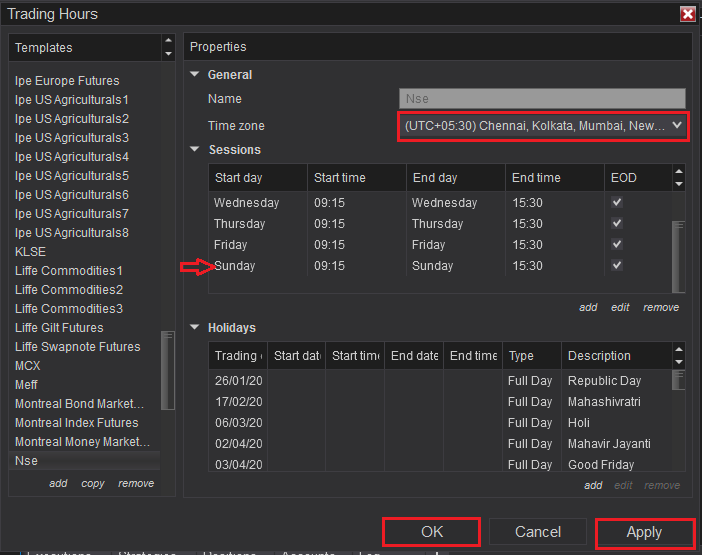
Once all the above settings are done, please "Reload Historical Data" by right-clicking on the chart which is already open and it will show you the Data for 01st February 2026 (Budget Day)
MetaStock Settings:
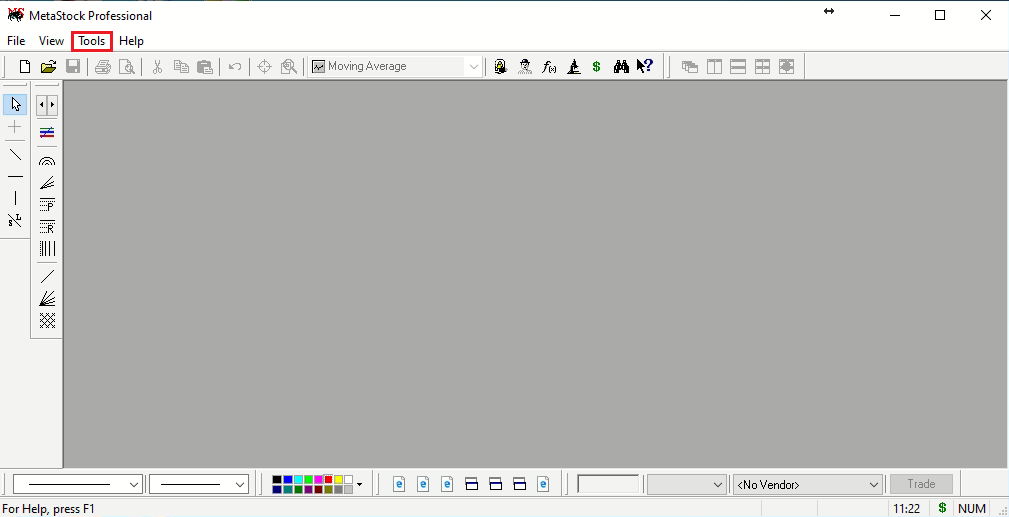
Step:- 1) Open your Metastock and click on the "Tools" menu.
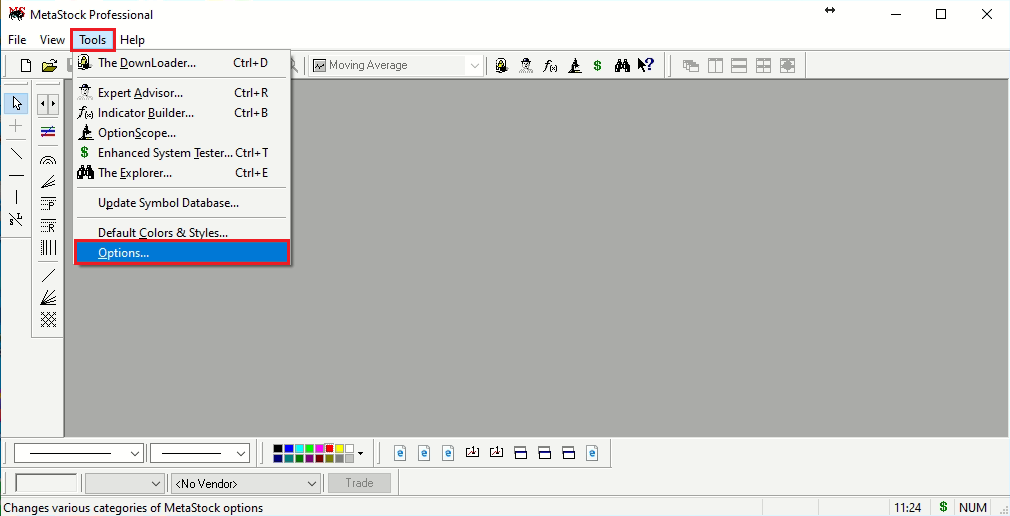
Step:- 2) Then Click on the "Options..." feature as shown in the below image.
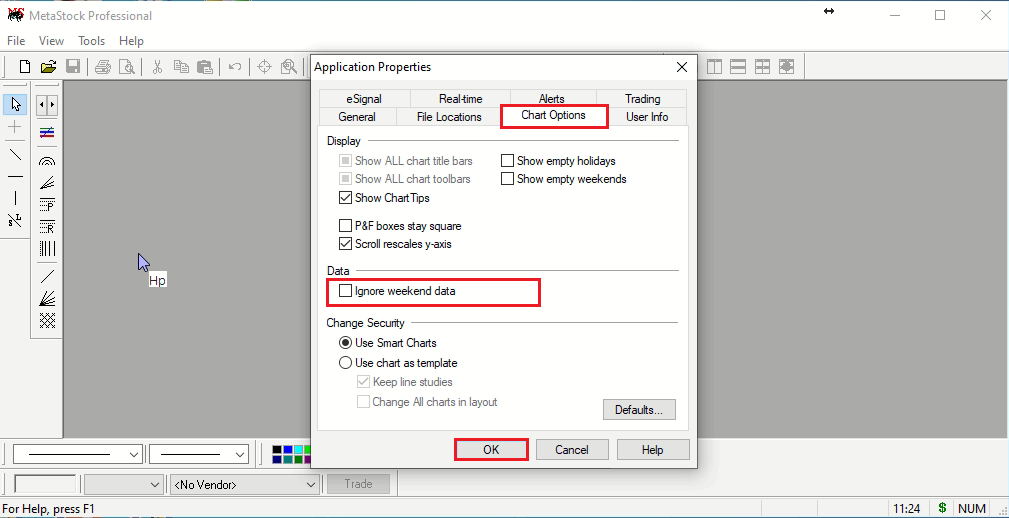
Step 3) After that click on "Chart Options" untick "Ignore Weekend Data" and click on the "OK" button.
Motivewave Settings:
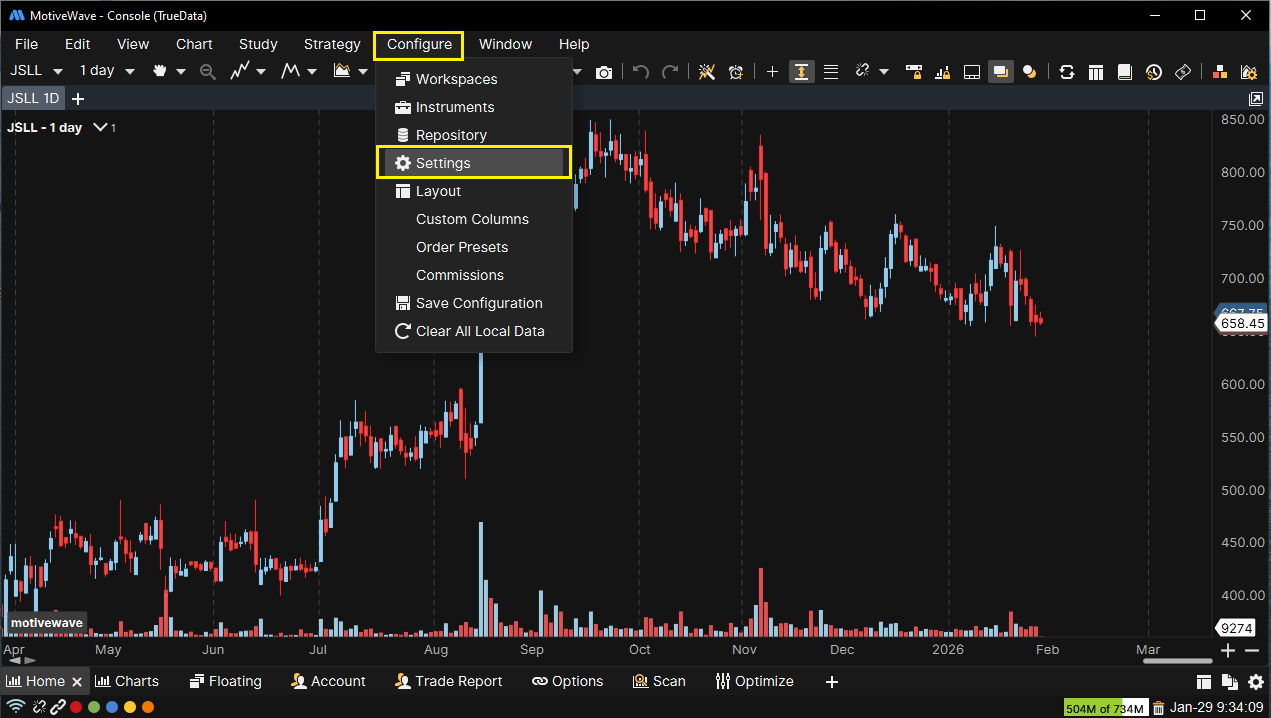
Step 1) Open motivewave and select the "Configure" and select "Settings" as per the below image.
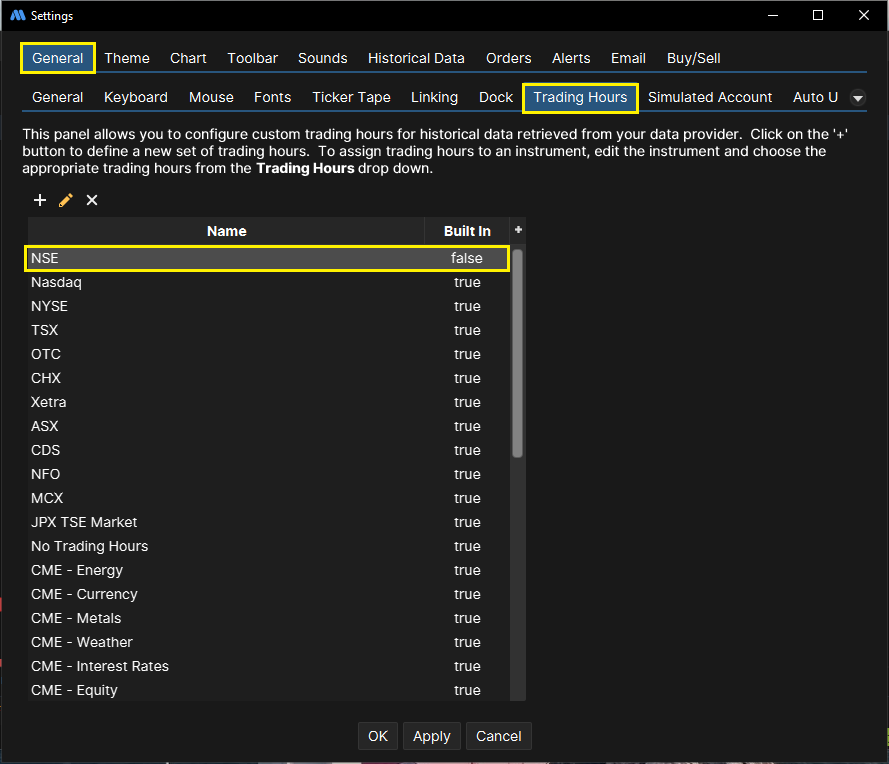
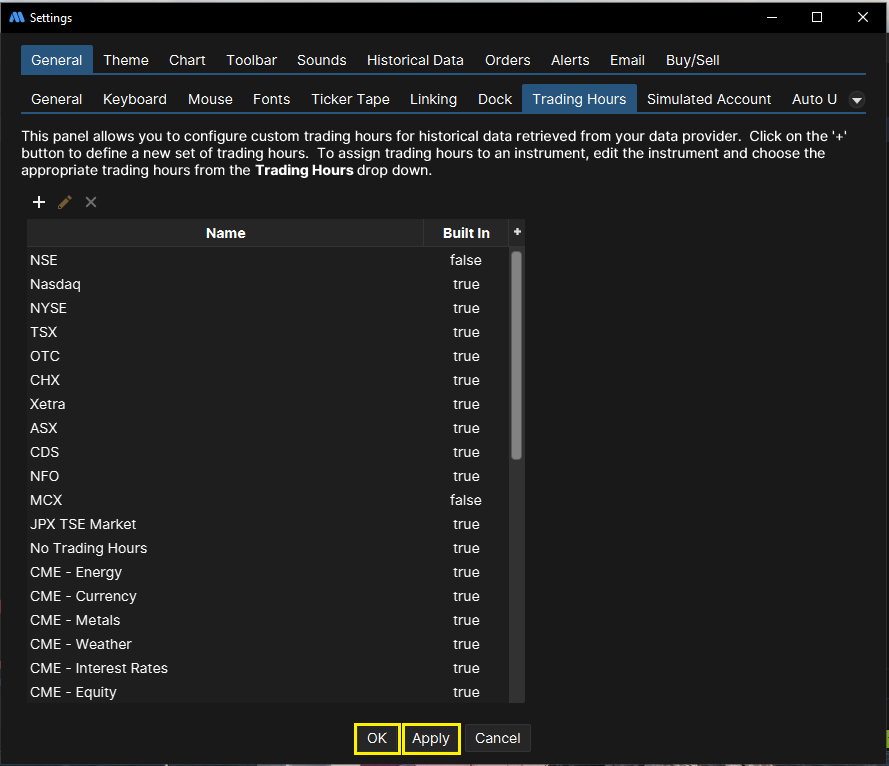
Step 2) Open your "Settings" window and then need to select the "Trading Hours" as per the below image.
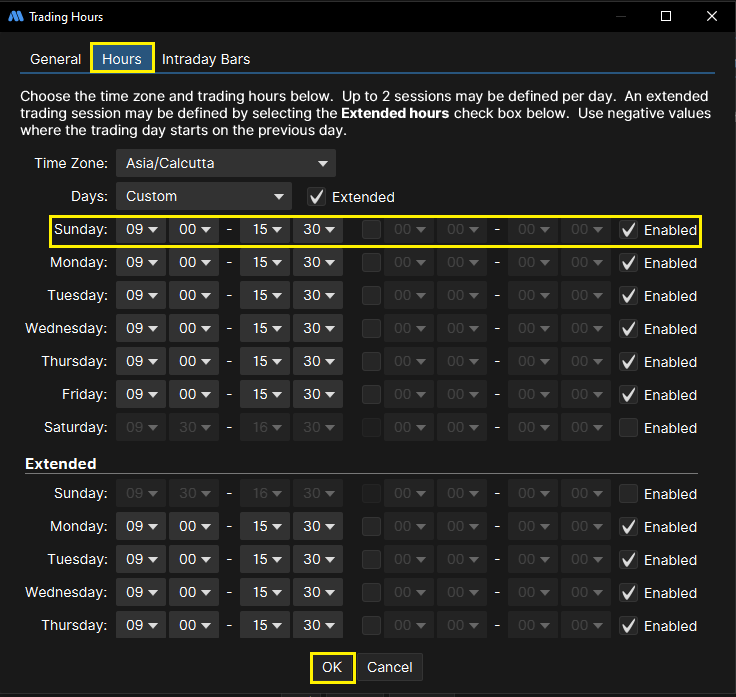
>> For "NSE Exchange" Setting double click on "NSE" and select the "Custom" days and select "Sunday" and tick on "Enabled" then click on "OK" button as per the below image.
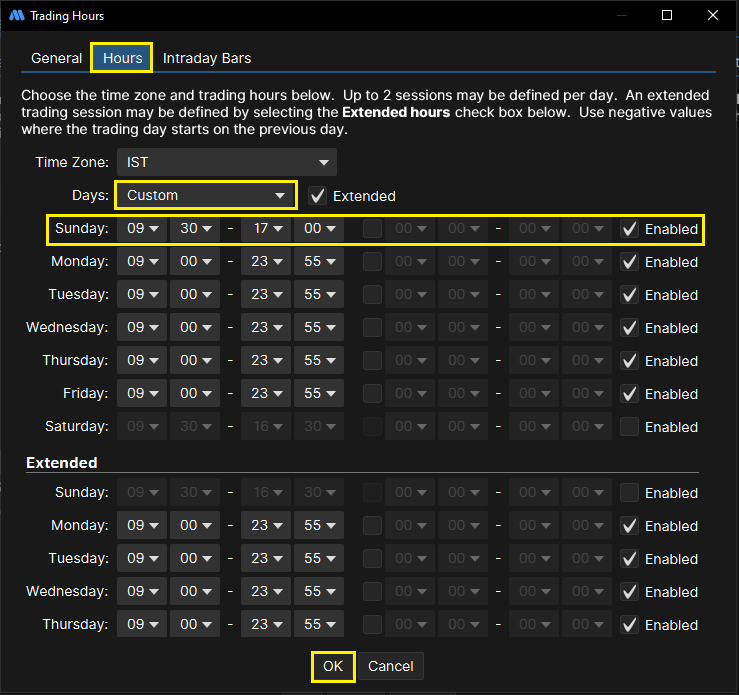
>> For "MCX Exchange" Setting double click on "MCX" and select the "Custom" days and select "Sunday" and tick on "Enabled" then click on "OK" button as per the below image.
Step 3) After following the above steps, go back to the Settings window and click the ‘Apply’ and ‘OK’ buttons.
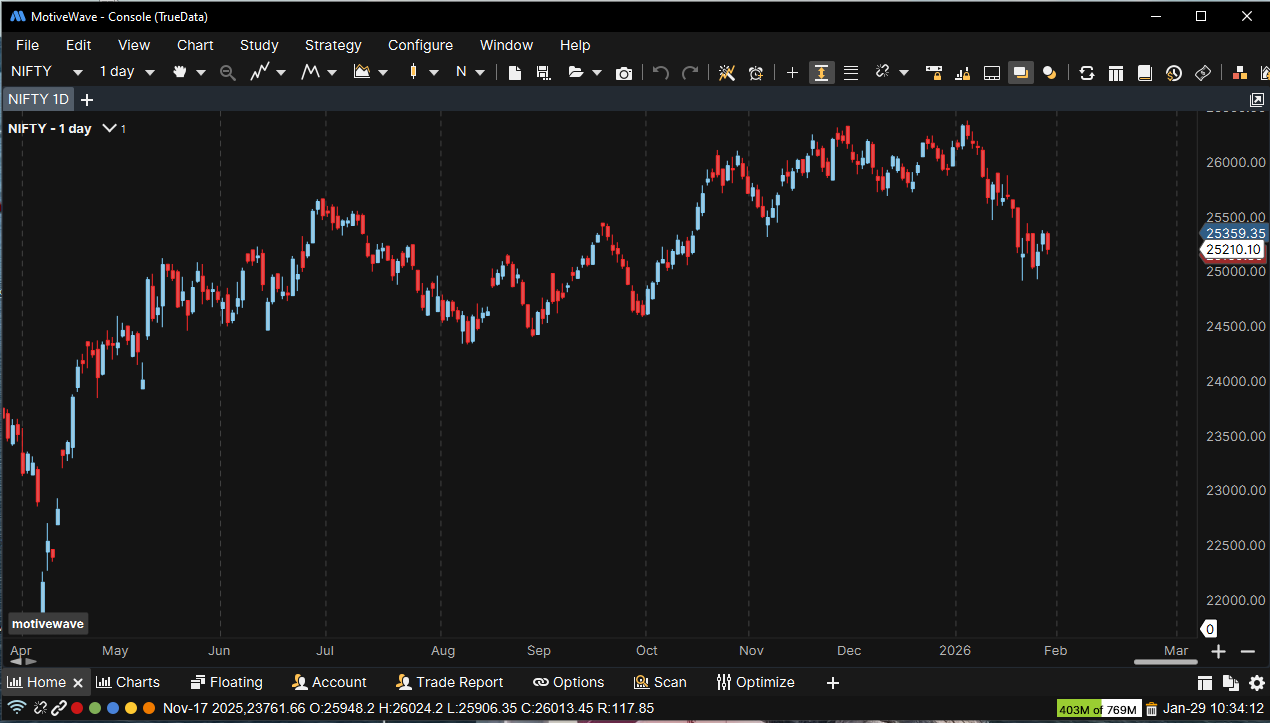
Step 4) After following all the above steps, when you open the chart, it will work even on budget day as per the below image.
Thank you and Happy Trading & Happy Weekend!
In case you need any assistance, please contact our LiveChat support team.